
Event Run Sheet Template with AV Cues: 2026 Guide

The most dangerous mistake in live production is assuming an event itinerary and a technical rundown are the same document. If you've ever watched a keynote speaker walk on stage to awkward silence, or endured a presenter talking over an unmuted video playback, you already know the stress of misaligned timing. When operators are left guessing which slide deck, audio sting, or lighting preset to load next, even the most ambitious corporate conference unravels. Implementing a field-tested event run sheet template with AV cues eliminates this friction, transforming a loose talent schedule into a disciplined, broadcast-quality production.
You can master live event timing by designing a rundown that speaks your technical crew's language while protecting your creative vision. In this guide, we'll break down the exact column architecture required for seamless show calling, show you how to embed protective buffer segments, and share the protocols needed to synchronise audio, lighting, and vision teams from opening sting to final walk-out.
Table of Contents
Anatomy of an Event Run Sheet with Dedicated AV Cues
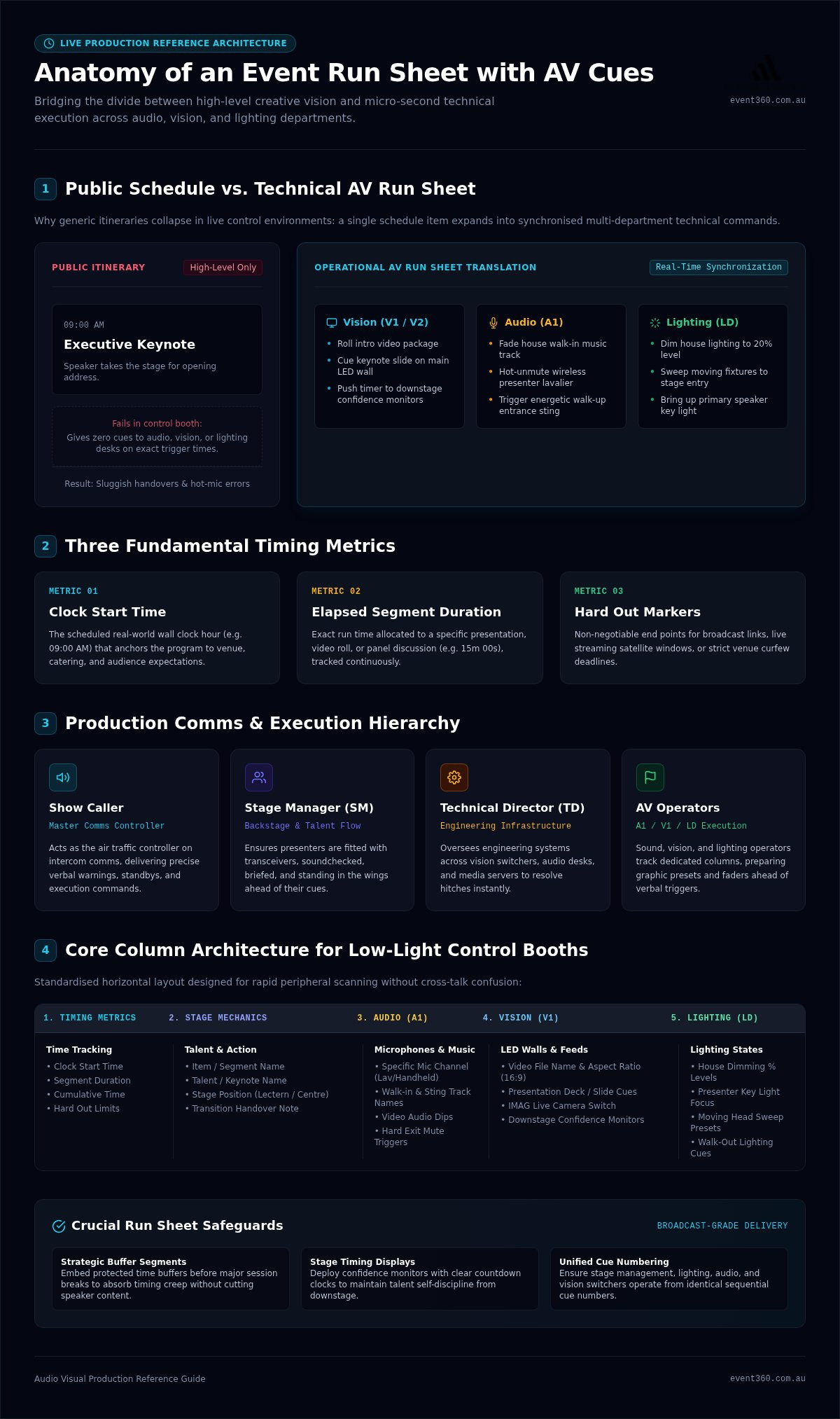
At its core, a technical run sheet is the master operational blueprint that synchronises live human action on stage with hardware triggers in the control booth. While an attendee sees a seamless keynote, the production desk experiences an intricate sequence of time-critical cues. Using a dedicated event run sheet template with AV cues bridges the divide between creative ambition and technical execution, anchoring every transition to three fundamental timing metrics: clock start time, elapsed segment duration, and hard out markers.
Standard Event Schedule vs. Technical AV Run Sheet
Public itineraries and front-of-house agendas tell guests when to take their seats, but they fail completely in a live control environment. A public conference schedule might simply note "9:00 AM: Executive Keynote". In contrast, an operational event run sheet template with AV cues expands that single entry into half a dozen coordinated technical commands happening across mere seconds:
Vision (V1/V2): Roll intro video, cue opening keynote slide on the main LED wall, and push countdown timer to downstage confidence monitors.
Audio (A1): Fade house walk-in music, hot-unmute the wireless presenter lavalier, and trigger walk-up audio stings.
Lighting (LD): Dim house lights to 20%, sweep moving fixtures to the stage entrance, and bring up the speaker key light.
Without this granular alignment, operators are left guessing what comes next, resulting in sluggish handovers, unmuted backstage chatter, and ruined visual impacts.
Key Stakeholders Who Depend on the AV Run Sheet
Live execution relies on a clear hierarchy where every department head works from identical cue numbers:
The Show Caller: Acts as the air traffic controller on the production comms network, delivering precise verbal warnings, standbys, and execution commands to the entire crew.
The Stage Manager (SM): Manages backstage flow, ensuring presenters are fitted with transceivers, soundchecked, and standing in the wings ahead of their scheduled cue.
The Technical Director (TD): Oversees the entire engineering infrastructure, coordinating systems across vision switchers, audio desks, and media servers to resolve technical hitches instantly.
Audio, Vision, and Lighting Operators: The sound engineer (A1), vision switcher (V1), and lighting director (LD) monitor their assigned columns continuously, preparing graphic presets and faders before the caller issues the trigger.
Core Columns Every AV Run Sheet Template Must Include
In a darkened front-of-house control booth, readability is everything. Generic spreadsheets fail because they bunch technical requirements into vague notes fields. A professional event run sheet template with AV cues separates distinct operational tasks into dedicated horizontal columns. At a minimum, your run sheet requires structured timing columns: Clock Time (the scheduled real-world hour), Duration (exact segment run time), and Cumulative Time (elapsed show time). Next come stage mechanics: Item Description, Talent, and Stage Position. Finally, you need separate columns for technical departments, matching standard audio visual production workflows to ensure zero cross-talk confusion.
Audio Cues: Microphones, Stings, and Playback Tracks
The audio column prevents hot-mic embarrassments and jarring audio silences. It tracks discrete technical requirements for every segment:
Microphone Allocations: Specify channels explicitly (e.g., "Lectern Mic", "Handheld 1", "Lav 2 - Sarah Chen").
Walk-in and Stung Music: Note exact track names, target playback volume, and start markers for executive entrances.
Playback and Mute Triggers: Clarify when to dip stage mics for pre-recorded video rolls and when to hit hard mutes as talent exits.
Vision and Display Cues: LED Walls, Slides, and Video
Vision operators coordinate high-resolution screen destinations, live camera switches, and presentation decks. Your vision column should clearly stipulate video file names, 16:9 or custom pixel aspect ratios, and switching presets. If you are deploying an ultra-wide canvas through modern LED wall hire, map out switcher routing precisely. Note when to push IMAG (live camera feeds), when to switch to the keynote presentation, and what appears on the downstage confidence monitors.
Lighting States: House Lights, Spotlights, and Atmosphere
Lighting cues establish room atmosphere and direct the audience's focus. Detail exact desk presets rather than generic descriptions. For example, specify "Cue 12: Dim House Lights to 10%, Bring Up Stage Apron Wash" or "Cue 14: Podium Pin-Spot Only". Include corporate colour shifts during awards announcements and blackout cues following closing video playouts.
When you need total confidence across your technical production, collaborating with Event 360 pairs your event run sheet template with AV cues with seasoned operators who manage these complex transitions effortlessly.
How to Build and Execute Your Event Run Sheet Step by Step
Building a show-ready rundown requires transforming an executive agenda into an executable sequence of hardware commands. Successful technical directors don't wait until event morning to iron out timing quirks. Instead, you should run a structured pre-production workflow that turns presentation assets into concrete triggers. By managing your event run sheet template with AV cues across distinct development phases, you ensure every crew member understands precisely when to load, fire, or cut technical elements.
Step 1 to 3: Drafting Timings and Collecting Technical Assets
Building your master document starts well before arriving on site:
Phase 1: Establish Clock Benchmarks: Lock key presentation lengths and caterer handovers into your master timeline first. Working backwards from hard room-clear deadlines prevents downstream schedule compression.
Phase 2: Ingest and Standardise Media: Gather slide decks, pre-rendered video packages, and title sting audio. Assign every asset a dedicated alphanumeric label (such as "V-02" or "A-04") to eradicate on-site confusion between draft versions.
Phase 3: Populate Departmental Tracks: Translate speaker requirements into explicit audio channels, vision presets, and lighting looks within your event run sheet template with AV cues.
Step 4 and 5: Conducting Tech Rehearsals and Finalizing Cue Language
Once you load into the venue, theoretical spreadsheets face practical reality. Conduct a technical dry run before bringing presenters onto the deck. Verify that wireless presentation clickers cycle reliably, test embedded video audio playback, and confirm confidence monitor feeds switch flawlessly from speaker notes to countdown timers.
Lock down formal headset protocol across all intercom channels during these rehearsals. Industry-standard show calling relies on a strict two-stage verbal syntax: "Standby [Department] [Cue Number]" delivered 15 to 30 seconds prior, followed by an unmistakable "[Department] GO" at the exact execution point. Never say "go" colloquially over the comms loop; save that specific syllable strictly for live technical execution.
Designate one master editor to manage document updates. While cloud rundowns make real-time updates simple, you must still print physical, timestamped copies for the control desk before doors open. If network connections falter, a physical, version-locked paper run sheet keeps your crew calling cues without missing a beat.
Managing Contingencies, Timing Creep, and Live Hybrid Demands
Live events rarely stick perfectly to the initial timetable. A presenter might linger on an audience anecdote, or a panel Q&A runs long. Without built-in protection, minute-by-minute timing creep cascades throughout the day, delaying catering handovers and breaching hard venue curfews. A resilient event run sheet template with AV cues incorporates deliberate shock absorbers, keeping the technical production calm and tightly synchronised even when on-stage timing shifts.
Controlling Session Creep and Stage Overruns
Never format a program without defensive buffers. Embed a five-minute contingency segment between heavy plenary sessions or allocate an unannounced 10% to 15% time cushion across morning blocks. To actively govern pacing from the booth, deploy digital speaker countdown timers and confidence displays on the stage apron. When an executive runs past their scheduled duration, the production desk can cycle displays from solid amber warnings to flashing red.
Pre-designate collapsible segments within your master sheet to recover lost minutes quickly:
Trim Secondary Assets: Highlight non-essential sponsor sizzle reels or video stings that the show caller can strike immediately over intercom.
Compress Q&A Blocks: Instruct the MC via foldback monitors or discreet in-ear monitors to cap questions to a single final respondent.
Decisive Musical Cues: Call walk-down audio stings and raise house lighting states assertively to signal the session conclusion when verbal prompts fail.
Integrating Virtual Presenters and Broadcast Feeds
Managing dual audiences introduces technical complexity that standard agendas overlook. If your conference incorporates dedicated live streaming services, your event run sheet template with AV cues requires split execution tracks for in-room versus broadcast feeds. Remote attendees cannot sit through dead air during an in-room leg stretch; they need dedicated holding slates, stream-only audio mixes, and virtual lower-third graphics.
Assign separate columns for virtual green room check-ins, remote presenter latency testing, and live switching triggers. Camera-optimised lighting presets must remain stable even if the in-room audience requires dimmer ambient settings for screen visibility. When synchronising dual-track hybrid productions across Australia, partner with Event 360 to manage your technical switching, stream encoding, and live stage calling with absolute precision.
Partnering with AV Specialists for Seamless Show Calling
Templates provide structure, but live execution demands seasoned human expertise. Even the most comprehensive event run sheet template with AV cues cannot calibrate wireless RF environments, switch vision under intense pressure, or troubleshoot corrupt media files on the fly. When your conference program includes multiple keynote speakers, dynamic lighting states, and high-impact digital canvases, relying on DIY spreadsheets or venue generalists introduces unnecessary operational risk. Partnering with dedicated specialists in audio visual australia wide ensures your master rundown translates into an effortless, broadcast-calibre experience.
The True Value of a Dedicated Technical Crew
Handing over show calling and hardware operations to technical specialists lifts immense stress off internal marketing and event teams. Dedicated crew bring distinct advantages to high-stakes environments:
Active RF and Sound Monitoring: Lead audio engineers track radio frequency spectrums in real time, eliminating rogue interference, managing gain before feedback occurs, and ensuring clean audio capture.
Dynamic Vision Engineering: Dedicated vision switchers manage multi-destination graphics, cut between presentation laptops instantly, and route camera signals without visual flicker.
Engineered Redundancies: Professional production teams implement primary and secondary backup playback engines, failover power distributions, and mirror-switched media servers so the show continues uninterrupted if hardware fails.
Designing Your Next Event with Event 360
Event 360 transforms complex conference agendas into seamless live productions. As your end-to-end technical production partner, our team bridges the gap between creative concept and precision execution. We supply turnkey technical labour, broadcast-grade camera packages, concert sound engineering, tailored lighting design, and ultra-high-resolution LED wall installations across the country.
Whether you are organising an annual corporate summit, an industry gala, or a multi-day conference, our show callers and technical directors integrate directly with your planning team. We refine your event run sheet template with AV cues, conduct rigorous technical dry runs, and coordinate every cue on headset so you can focus entirely on your guests. Reach out to Event 360 today to turn your creative vision into a flawless live show.
Master Your Stage Execution from First Cue to Final Walk-Out
Delivering a broadcast-calibre event comes down to shared technical clarity. Moving beyond a generic itinerary to implement a structured event run sheet template with AV cues gives your production crew the exact timing benchmarks, microphone routes, and visual presets needed to succeed under pressure. When you embed protective buffer segments and establish disciplined headset protocols, you eliminate on-site friction and safeguard your agenda against unexpected stage creep.
For complex corporate gatherings where nothing can be left to chance, having a dedicated technical partner makes all the difference. Partner with Event 360 for flawless technical production to support your team with nationwide live event expertise. From specialised MICE conference management to turnkey sound, high-resolution LED wall solutions, bespoke lighting design, and live streaming, our experienced crew ensures every transition fires without missing a beat. Step into your next show with complete peace of mind.
Frequently Asked Questions
What is the difference between a running order and an AV run sheet?
A standard running order outlines broad public session times and topics, whereas an AV run sheet details the minute-by-minute technical execution behind those moments. A running order simply tells attendees when a presentation starts. An AV run sheet specifies microphone channels, slide aspect ratios, lighting presets, and exact video triggers required by technical operators to support that speaker on stage. It transforms general scheduling into actionable engineering instructions.
What key columns should be included in an event run sheet template with AV cues?
A comprehensive event run sheet template with AV cues must include horizontal columns for Item Number, Scheduled Start Time, Segment Duration, and Action Description. Alongside talent assignments, it requires dedicated technical tracks for Audio (microphones, background music, video audio), Vision (graphics, slide inputs, LED wall presets), Lighting (room washes, spotlights), and Stream/Broadcast (lower thirds, virtual feeds). Clear columns ensure booth operators scan their specific duties rapidly without visual clutter.
Who is responsible for calling cues during a live corporate event?
The show caller, often working as or alongside the stage manager, holds sole authority for calling cues over the production intercom. While technical directors manage equipment engineering and signal routing, the show caller tracks the master rundown second by second. They deliver timed warnings, standbys, and execution commands to audio, vision, and lighting operators, ensuring the entire crew acts in perfect harmony rather than firing triggers independently.
How do you manage an event run sheet when a keynote speaker runs over time?
Manage schedule creep by deploying pre-planned contingency buffers and real-time stage communication. Signal the presenter immediately via downstage confidence monitors or digital countdown clocks turning amber and red. If they continue speaking, the show caller coordinates with the event organiser on comms to compress subsequent panel Q&As or strike non-essential video packages. Never alter your hard lunch or venue curfew times; absorb delays by trimming secondary items downstream.
How should hybrid and live-streamed elements be noted on an AV run sheet?
Hybrid elements require dedicated broadcast columns running parallel to your in-room technical cues. Document remote speaker check-in times in virtual green rooms, dedicated live-stream graphics, and lower-third overlays. Clearly specify whether an audio cue feeds the house PA, the digital stream mix, or both. This dual-track approach prevents virtual audiences from staring at dead air or unmuted room chatter while in-person guests take scheduled room breaks.
Can you run a complex corporate conference using a spreadsheet template instead of software?
You can run corporate shows using a structured spreadsheet template, provided you maintain strict version control and assign a single master editor. While dedicated cloud software offers automatic mathematical recalculations, a clean, well-formatted event run sheet template with AV cues built in Excel or Google Sheets remains an industry workhorse. Always print timestamped physical copies for control booth desks to guard against network dropouts during live show calling.
What verbal commands are standard when calling audio and visual cues?
Professional show callers use a standardised two-part command sequence consisting of "Standby" followed by "GO". Roughly 15 to 30 seconds before a trigger, the caller says, "Standby Audio Track 2 and Vision Slide 4." Once the visual or verbal prompt occurs on stage, they issue the crisp command, "Audio and Vision, GO." Operators never fire early, and crew members avoid using the word "go" in casual headset chatter.


Comments