
Hybrid Event Camera Setup: A Practical Guide for 2026

A good hybrid event camera setup starts with the person watching online, not the camera on stage. In-room attendees can see the whole space, but remote viewers need clear, deliberate shots to follow speakers, audience questions and demonstrations. Adding cameras won’t automatically improve the experience if their positions and shots aren’t planned around what online viewers need to see.
It’s common to be unsure how many cameras an event needs, where to place them or how they connect to switching and streaming equipment. Plan these decisions early and the production can feel seamless for both audiences. Leave them until event day and avoidable gaps can put the stream under pressure.
This guide explains how to choose camera coverage for your event format, plan useful views for remote attendees and connect cameras to switching and streaming equipment. You’ll also learn what to confirm with your production team and rehearse against the run sheet, so the cameras, crew and programme work together.
Table of Contents
Plan a hybrid event camera setup around the online audience
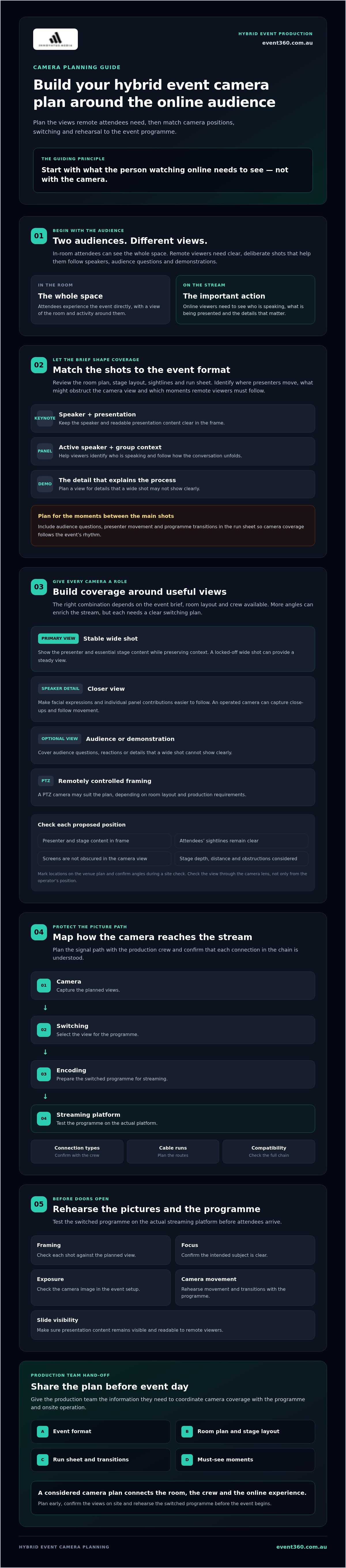
A hybrid event camera setup coordinates what’s captured in the room, how the pictures are switched and how the programme reaches remote viewers. Plan the camera coverage for both audiences from the outset. In a hybrid event, people attend in person and online, so consider what each group needs to follow the experience.
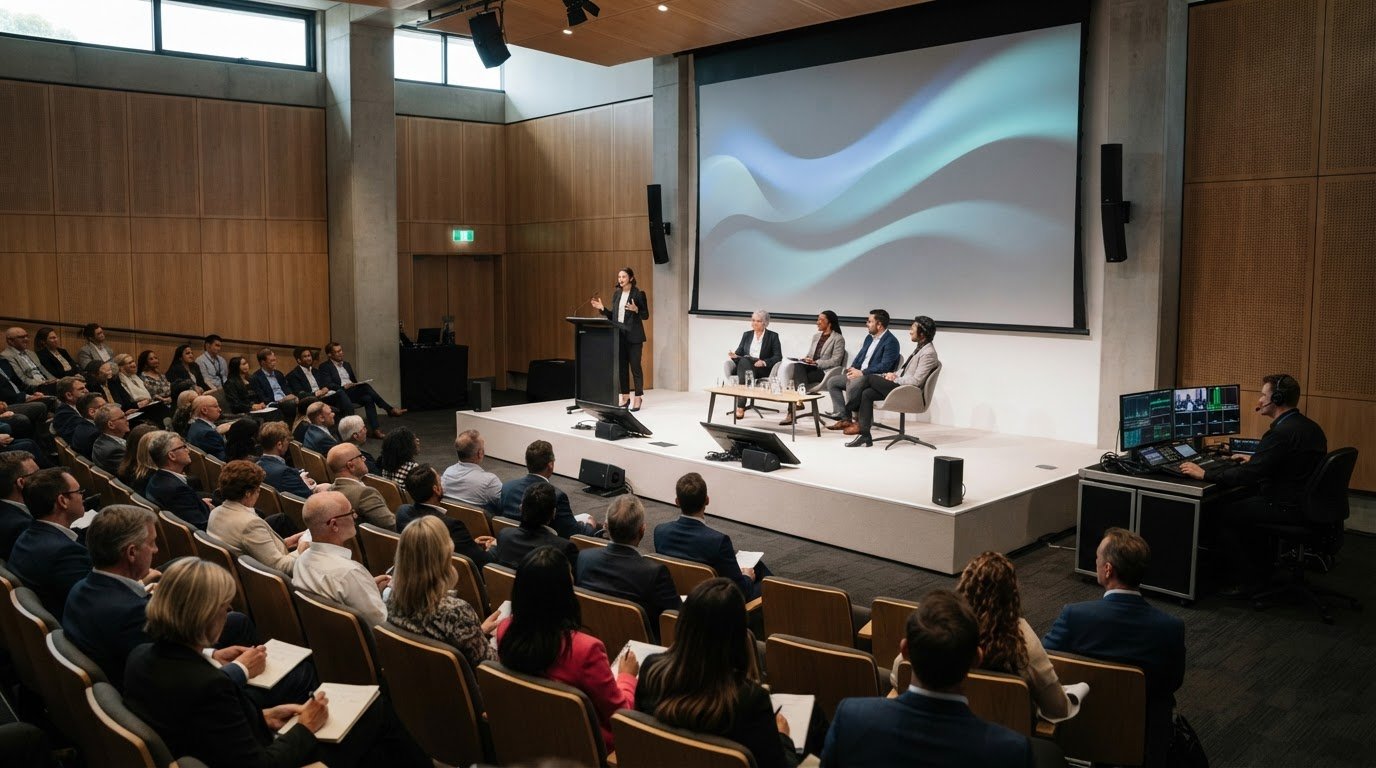
Start with the event format: a keynote, panel, product demonstration, interview or multi-session conference. Each has different moments to communicate. A keynote may centre on the speaker and presentation content, while a panel needs to show who’s speaking and how the conversation unfolds. A demonstration may depend on a visual detail that’s easy to miss remotely. Let the event brief determine the camera coverage, not the other way around.
Before choosing positions or equipment, review the room plan, stage layout and sightlines. Consider where presenters will stand or move, how attendees will be seated, and whether screens or other features could block the views needed for the stream. Note the moments remote attendees must be able to follow, such as audience participation or a change of activity. This gives the production team a practical basis for planning coverage around the programme.
What should a hybrid event camera setup capture?
Prioritise a steady view of the speaker, presentation content that online viewers can read and changes of perspective that help them follow the session. For a panel, consider how the active speaker and the wider group each contribute to the conversation. For a demonstration, identify the details viewers need to understand the process or product. The goal is to make the important action clear, not simply show that it’s happening.
How does the event format shape camera coverage?
A presenter-led session has different visual needs from a panel or interview. Consider where audience questions fit, whether speakers move around and how the programme transitions between segments. Include these moments in the run sheet so the camera plan follows the event’s rhythm. For broader planning context, explore how hybrid event solutions can coordinate the in-room and online experience.
Give the production team the format, room layout and must-see moments. That information helps connect camera coverage with the wider production plan and gives both audiences a more considered view of the event.
Choose camera positions and coverage for a polished hybrid event
Choose camera positions to solve specific viewing problems. A locked-off wide shot can provide a steady view of the stage and presenter, while an operated camera can capture close-ups and follow movement. A PTZ camera offers remotely controlled framing, but its suitability depends on the room layout and production requirements. No option suits every event, so match each camera’s role to what remote viewers need to see.
Think about the coverage roles before deciding how many cameras to use:
Primary view: A stable shot of the presenter and essential stage content, framed to preserve context.
Speaker detail: A closer view that makes facial expressions and individual panel contributions easier to follow.
Optional audience or demonstration view: Coverage for audience questions, reactions or details that a wide shot can’t show clearly.
The right combination depends on the event brief and the crew available to operate or control the cameras. More angles can create a richer stream, but each needs a clear switching plan.
Where should cameras sit in a conference room?
Start by identifying a primary position that captures the presenter and essential stage content without blocking attendees’ sightlines. Check the view through the camera lens, not just from the operator’s position. A screen may be visible from the back of the room but obscured in the camera frame by a speaker or stage feature. Allow for audience movement and consider stage depth, camera-to-subject distance and potential obstructions such as columns.
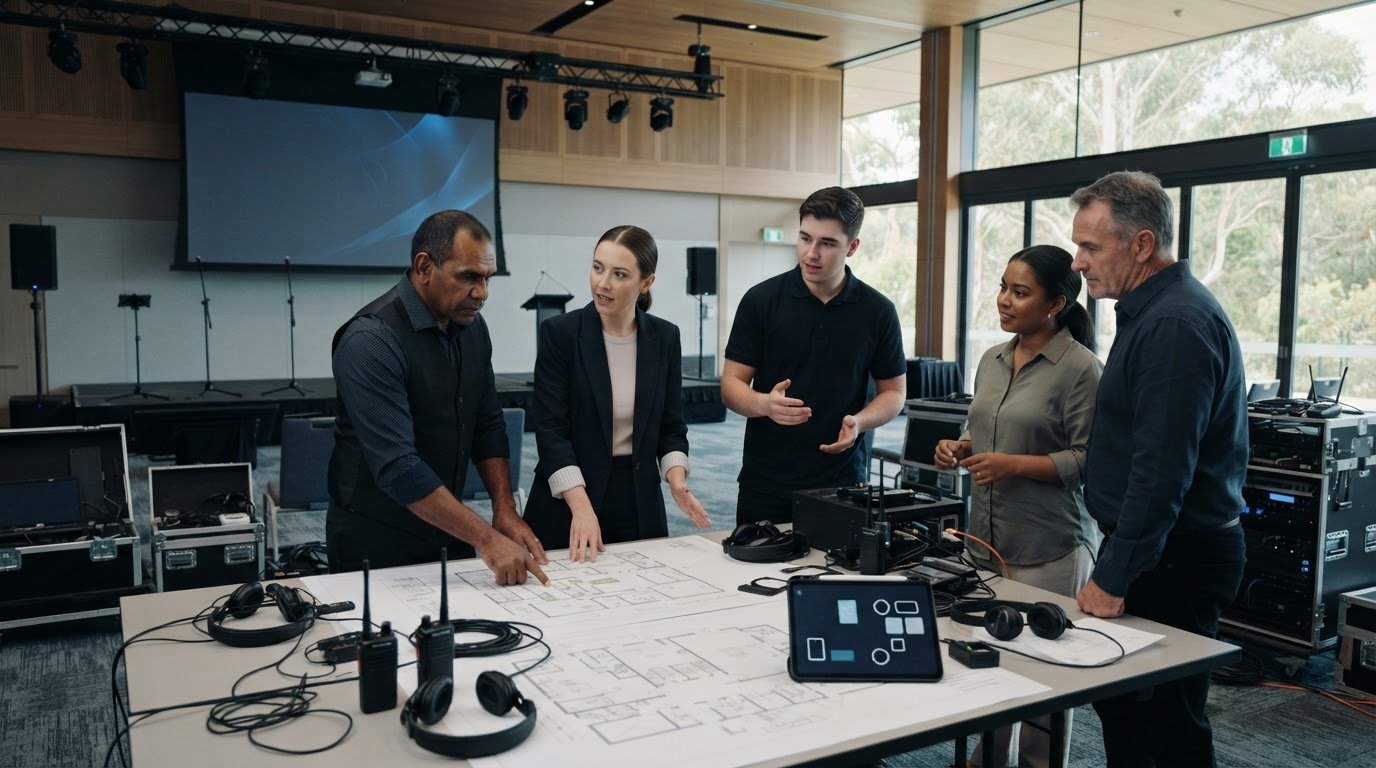
Mark proposed camera locations on the venue plan, then confirm the angles during a site check. A university virtual event checklist can also prompt broader checks of technical and audio-visual needs.
When does a hybrid event need more than one camera?
Additional views are useful when the programme moves between speakers, panels and demonstrations, or when audience questions and presenter movement are central to the experience. For example, a wide view can maintain context while another camera frames a panellist or follows a demonstration. Each extra view also needs to be switched at the right moment, either by an operator or through a suitable control workflow.
PTZ cameras may suit rooms where remote control can cover planned framing changes, but assess sightlines, movement and production needs before choosing them. Match camera positions to the run sheet and confirm the plan with your crew. Explore Event 360’s audio-visual production support as part of planning camera coverage and the wider production.
Connect cameras, switching and streaming without losing the picture
A polished camera plan needs a dependable route from the room to the online audience. Map the signal path before event day: camera outputs feed a vision switcher, the selected programme goes to an encoder, and the encoder sends the stream to the chosen platform. Some production designs combine switching and encoding, so confirm how the proposed system handles each step.
Cameras capture the action; switching shapes the programme; encoding delivers it to viewers. Keeping those roles clear makes it easier to identify what needs testing and who is responsible for each connection in your hybrid event camera setup.
What connects event cameras to a livestream?
Camera outputs carry the picture into the production system. The vision switcher lets the crew choose between camera angles and other sources, such as presentation slides. An encoder prepares the finished programme for delivery to the streaming platform. The exact connection path depends on the equipment, cable distance and production design.
HDMI and SDI are common connection options, but don’t assume they’re interchangeable in a specific setup. Ask the production team to confirm camera outputs, switcher inputs, any required conversion, cable runs and platform requirements. Check that all devices are compatible and agree how the programme will reach the selected platform before event day. A signal map can reveal a missing connection while there’s still time to plan around it.
How do camera shots, slides and audio work together?
Plan the programme as a sequence of visual choices. During a keynote, the stream might show the presenter, then switch to a presentation feed when a slide needs close attention. For a panel, the crew may move between the active speaker and a wider group view. For a demonstration, decide when a close-up or supporting visual needs to take priority.
Include those cues in the run sheet so camera changes, slides and graphics are coordinated rather than competing for attention. If the stream needs titles or lower-thirds, confirm when they appear and which source they overlay. Coordinate event audio with the video plan, too, so the online programme carries the intended speaker or discussion as the picture changes.
Ask the production team to check the full route from camera and presentation inputs through switching and encoding to the platform. Event 360’s live streaming and hybrid event solutions can form part of that wider delivery plan, with equipment and platform options confirmed for the specific event.
Rehearse and troubleshoot your hybrid event camera setup
A rehearsal turns the camera plan into clear, tested cues. Run it before doors open, using the actual room, production equipment and streaming platform where possible. This gives the crew time to spot framing problems, check the online view and agree what to do if a feed or programme cue changes.
What should the camera rehearsal include?
Test every planned shot from the camera operator’s position or PTZ control point, then rehearse the key moments in the run sheet. Use this pre-event check:
Framing: Confirm the speaker, stage and essential content are clear in each planned shot.
Focus: Check the image stays sharp at expected presenter positions and during movement.
Exposure: Look for faces that are too dark or bright, and adjust for the actual stage lighting.
Movement: Practise pans, camera handovers and presenter movement so transitions feel deliberate.
Slides: Check presentation content is legible in the stream, not just on the room screens.
Switching and stream: Rehearse camera and slide cues, then check the stream preview or return on the actual platform.
Include speaker entrances, panel handovers, demonstrations and other transitions. A view that looks right in the room may appear different to remote viewers, so review the stream itself before the audience joins.
What happens if a camera feed fails?
Agree on a fallback view and escalation process with the production team. If a close-up disappears, for example, the crew should know whether to cut to a usable wide shot while someone checks the connection. Confirm which spare connections or replacement options make sense for the equipment plan, rather than assuming every component has a like-for-like backup.
Keep a printed or shared camera cue sheet accessible to the relevant crew. It should identify planned shots, switching cues and who to contact if a feed, camera position or programme moment changes. Assign responsibility for monitoring the room, stream and technical cues, so a problem doesn’t go unnoticed while everyone assumes someone else is watching.
Check the streaming platform’s guidance and the venue’s network conditions for the specific production. There isn’t one internet-speed figure that suits every setup; requirements depend on the platform and delivery plan. Test the connection and online viewing experience during the rehearsal.
Event 360 can support camera checks, technical crew coordination and live streaming as part of a hybrid event production plan.
Bring your hybrid event camera plan to life with production support
A clear brief gives the production team a practical starting point for shaping camera coverage around the event, not just the room. Share the format, audience, venue plan and run sheet, then highlight the moments remote attendees must see clearly. This helps connect camera planning with wider production requirements, including switching, streaming and onsite coordination.
What should you include in a camera production brief?
Give the team the schedule, speaker details and stage plan, along with a description of the online audience experience you want to create. Flag presentations, demonstrations, audience participation and visual requirements that could affect camera positions or switching cues. For example, note when a presenter will move around the stage or when a demonstration needs a close view.
Ask the production team to confirm suitable equipment, responsibility for each technical role and when the camera rehearsal will happen. Check camera types, switching systems and streaming platforms against the specific event requirements rather than making assumptions in advance.
For wider production planning, an audio-visual production guide can help you consider how camera coverage fits with the event’s other technical needs. Keep the brief practical: what needs to happen, when it happens and what online viewers need to see.
When should you bring in a hybrid event production team?
Production support can be useful when the programme needs multiple camera views, coordinated live switching or a clear link between camera cues and the run sheet. A technical crew can support equipment hire, installation, operation and pack-down as part of the production plan, helping organisers coordinate setup and live operation.
Event 360 provides tailored audio-visual production and hybrid event solutions for corporate, live and MICE events across Australia. Its team can support camera planning, installation, operation and onsite coordination, with specific equipment and streaming options confirmed for your project. The audio-visual production services can be considered alongside your event’s wider technical requirements.
Build a confident production plan for your next hybrid event
A polished hybrid event camera setup starts with the audience experience, then brings camera coverage, switching and streaming together in a plan the crew can rehearse. Keep the event brief and run sheet at the centre of those decisions, and confirm the technical details before event day. That preparation helps in-room and online attendees stay connected to the moments that matter.
Event 360 provides tailored audio-visual production for corporate and live events, alongside hybrid event and live-streaming solutions. Technical labour can support setup, operation and pack-down, helping coordinate production details around your programme.
To plan your hybrid event camera setup, talk with Event 360 and share your event format, room plan and key production requirements.
Frequently Asked Questions
How many cameras do you need for a hybrid event?
Choose the number of cameras based on the programme, room and views online attendees need, not a fixed rule. A presenter-led session may work with a primary view, while a panel or demonstration may benefit from additional angles for speaker details or close-ups. Each added camera also needs a switching or control plan. Confirm the coverage brief and crew requirements with the production team.
What camera is best for a hybrid event?
The best camera is one that suits its planned role and works with the rest of the production system. A locked-off camera can provide a consistent wide view, an operated camera can follow action, and a PTZ option may suit a room where remote framing control fits the production design. Ask the crew to confirm camera outputs, control needs and compatibility with the switching and streaming equipment.
Can you use a regular video camera for a hybrid event?
Yes, a regular video camera may be suitable if it can provide a usable feed for the production setup. Check its video output, power arrangements and compatibility with the switcher or any required connections. Also test focus, exposure and performance for the session’s duration. The camera’s label alone won’t confirm it’s right for the job, so have the production team assess it as part of the full signal path.
How do you set up cameras for a hybrid conference?
Begin with the run sheet and mark camera positions on the room plan. Choose a primary view that captures the presenter and essential stage content, then identify extra angles needed for panels, audience questions or demonstrations. Check sightlines and cable routes, map how feeds reach switching and streaming equipment, and rehearse the planned cues. Test the online view on the chosen platform before attendees join.
Do I need a camera operator for a hybrid event?
It depends on the coverage and control plan. A locked-off camera may need less active adjustment, while operated close-ups or multiple live angles require someone to manage framing and switching, either directly or through a suitable workflow. Discuss who will monitor the room, camera feeds and programme cues. For a complex schedule, confirm crew responsibilities and technical labour needs during production planning.
What happens if a camera stops working during a hybrid event?
The crew should switch to an agreed usable view, such as a stable wide shot, while they assess the failed feed. Before the event, confirm who handles escalation and which spare connections or replacement options suit the equipment plan. Keep the camera cue sheet accessible so the team can follow the fallback plan and adjust upcoming cues without losing track of the programme.
How do you make a hybrid event camera setup look professional?
Make every shot serve the online viewer: frame speakers clearly, keep presentation content readable and change perspective for a reason. Check that sightlines, lighting and camera movement work in the actual room, then review the switched programme on the streaming platform. A well-rehearsed hybrid event camera setup also depends on coordinated cues, compatible connections and clear crew responsibilities.
Comments